现象
windows 笔记本合盖睡眠,且不接电源的情况下。经过随机 1~3 小时。
再开盖时,按下电源笔记本无法正常开启,经过 1~3 分钟,会蓝屏并报出 DRIVER_POWER_STATE_FAILURE (0x9F) 错误码,随后经过 2~5 分钟自检并彻底重启。
这非常打断工作流,重启后所有的工作区和软件都要重新打开,特别是在国内的傻逼软件微信系的玩意,都必须再手动掏出手机,然后扫码,然后他又得过一段时间同步信息,有时还会丢失信息。
经过这样一次事件,需要几乎半小时,才能准备好一切工作条件再重新开始。
排查
我一直以为是 windows 某次更新后引入的奇怪 bug,或者硬件上的某种不适配。今天受不了决定了解下具体是什么问题。
好在现在有 AI 帮助,只要自己检索规划出合理的排查路径,大多数信息都可以询问 AI 而不用自己从零学习。
主要的参考文章是
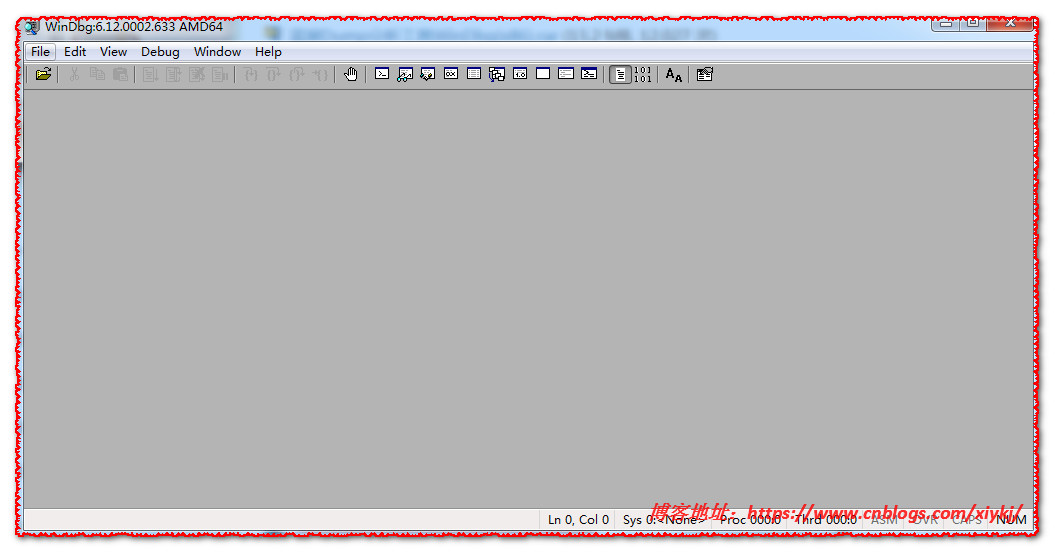
介绍了如何分析蓝屏现场保存的 windows 崩溃记录文件 Dump,该系列文件在 C:\Windows\Minidump,为了避免权限问题,复制一份放在外面进行分析。
WinDbg
windows 有 WinDbg 工具,参考文章中的版本相对老旧,所以需要基本探索一下 WinDbg 工具的使用。
微软官方有安装指南 安装 WinDbg - Windows drivers | Microsoft Learn,最方便快捷的就是使用终端指令安装,在终端运行
winget install Microsoft.WinDbg
或者你的终端环境不可用,也可以选用指南中的其他方法。安装完成后在开始菜单的应用列表中搜索 WinDbg,即可打开。
与参考文章不同,新版本的 WinDbg 工具操作方法和设置项名有一些区别,下面会逐步演示。
在正式导入 Dump 文件分析前需要做预配置。
首先点击左上角的 File。
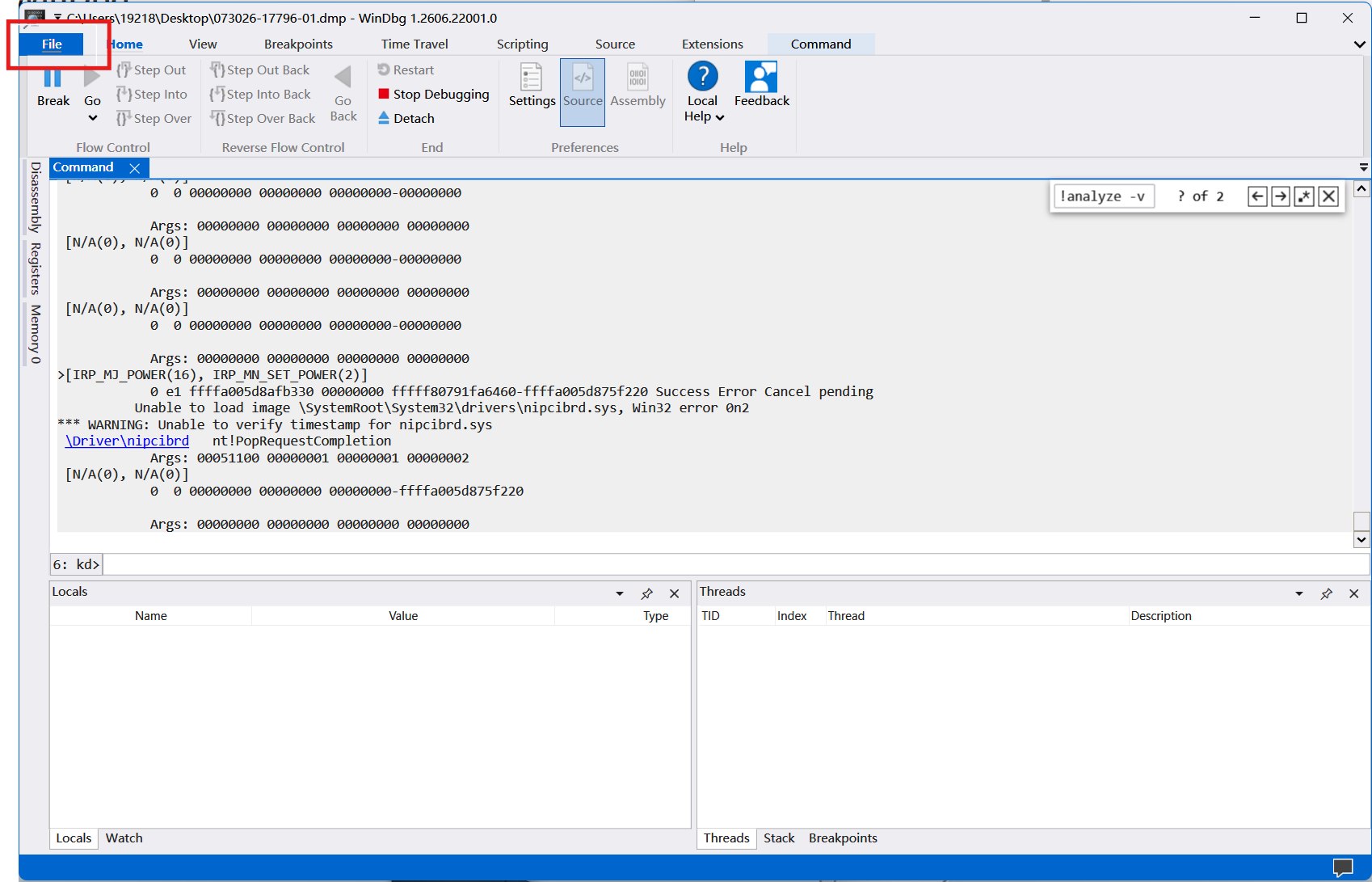
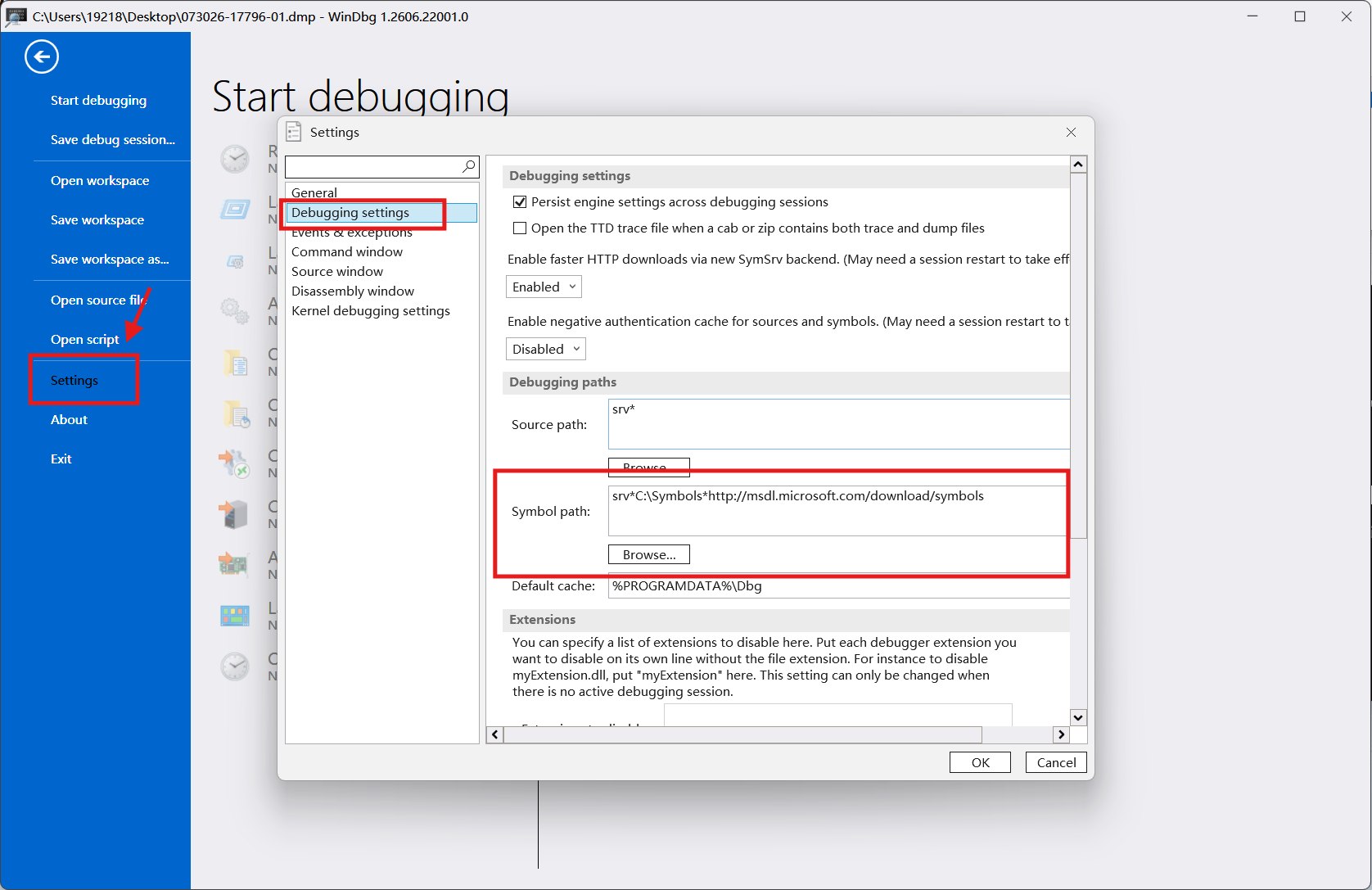
然后点击 Settings,打开弹出页的 Debugging settings,设置其中的 Symbol path,为
srv*C:\Symbols*http://msdl.microsoft.com/download/symbols
这里我的操作方法和参考文章就已经不同,微软系的这些小软件,未来更新可能操作逻辑又有变化。
宗旨是预先配置 Symbol 这个关键词相关的设置项就行。
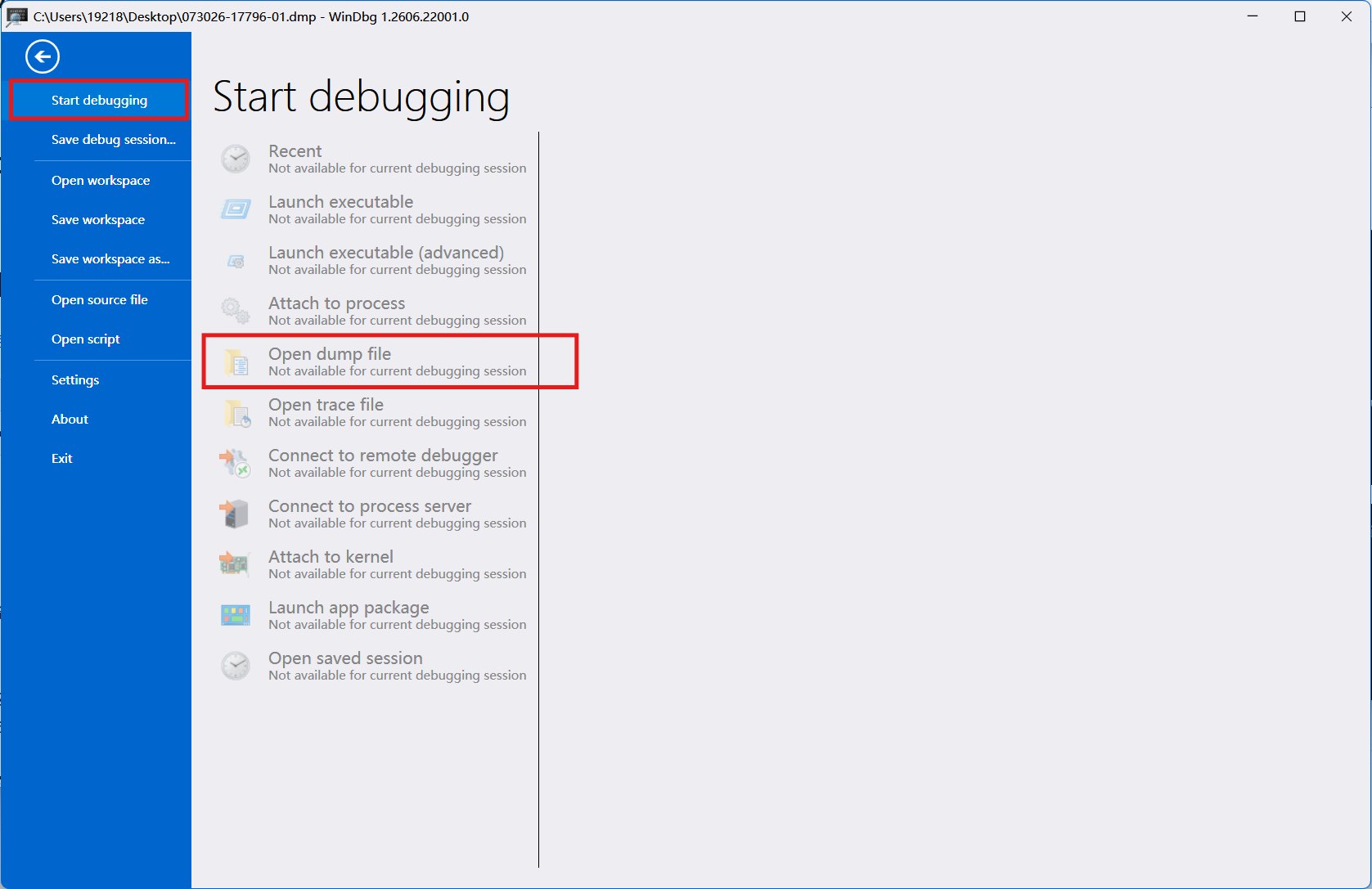
然后来到 Start debugging,点击其中的 Open dump file。这里我是灰色因为我在进行一个 dump 分析且暂时没有保存或关闭文件。
这一步的操作逻辑也未必一致,宗旨是找到 Open dump 这个关键词。
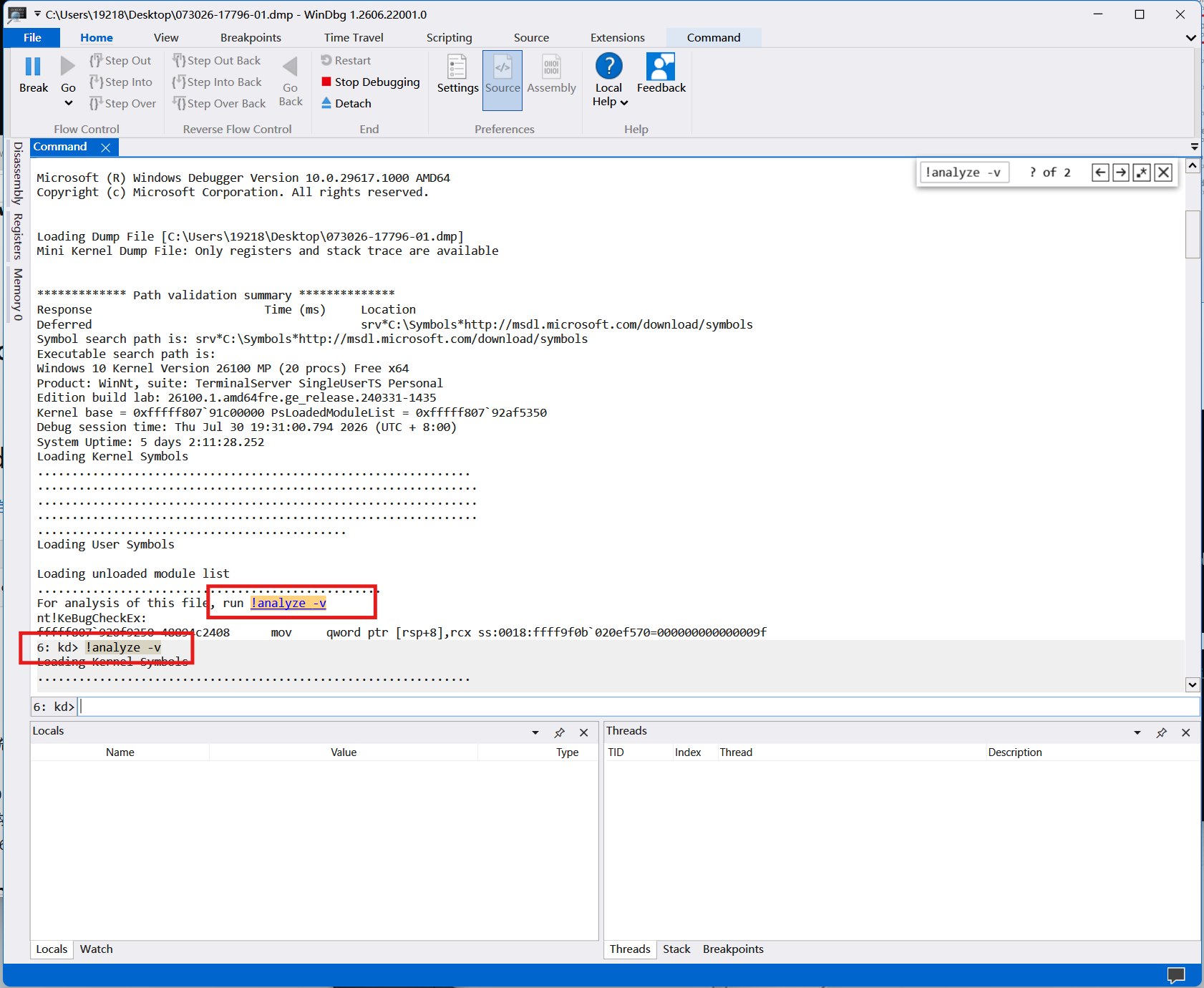
如果成功打开,那么将会有一些头信息的输出,并提示你运行相应指令进行正式分析。
你只要打命令开始分析就好
!analyze -v
注意,这个分析有一定耗时且不会给你提示,耐心等待 Debugging Details: 后的信息完全输出。当他分析完毕后,Debugging Details: 信息会不间断一次性输出。
然后你就可以成批量将输出的分析信息一次性包给 AI 分析了,实际上我也完全看不懂。
我的问题分析结论
AI 给出的分析结论如下。
∴ The user has provided the complete !analyze -v output along with the !devobj and !irp commands I requested. Now I can
  give a comprehensive analysis.

  Let me parse the key findings:

  1. Bug Check: 0x9F (DRIVER_POWER_STATE_FAILURE) with Arg1=3 (device object blocking IRP too long)
  2. IMAGE_NAME: pci.sys
  3. FAILURE_BUCKET: 0x9F_3_POWER_DOWN_nipcibrd_IMAGE_pci.sys
  4. DRVPOWERSTATE_SUBCODE: 3 — power down transition
  5. STACK_TEXT: Shows nt!PopIrpWatchdogBugcheck → nt!PopIrpWatchdog — the power watchdog timer fired, meaning an IRP
  was stuck too long

  From !irp output:
  - Current stack (stack 7): IRP_MJ_POWER(16), IRP_MN_SET_POWER(2) — this is a SET_POWER IRP
  - The driver handling it is nipcibrd.sys — this is the National Instruments PCI/PXI bridge driver
  - The status shows "Success Error Cancel pending" — the IRP is still pending
  - The completion routine is nt!PopRequestCompletion
  - The device stack shows: \Driver\nipcibrd → \Driver\pci → \Driver\ACPI

  From !devobj:
  - The PDO belongs to \Driver\pci
  - Upper attached device is \Driver\ACPI

  So the power IRP is going through: pci → ACPI → nipcibrd

  The nipcibrd.sys driver has the pending IRP — it's not completing the power down request.

  Let me give a thorough analysis.

● 完整分析结论

  崩溃根因

  肇事驱动:nipcibrd.sys — National Instruments PCI/PXI Bridge Driver

  这是一个 National Instruments (NI) 的驱动,用于 NI 的 PCI/PXI 数据采集或仪器控制硬件。

  ---
  证据链

  ┌──────────────────────┬──────────────────────────────────────────────────────────────────┐
  │         证据         │                               指向                               │
  ├──────────────────────┼──────────────────────────────────────────────────────────────────┤
  │ FAILURE_BUCKET       │ 0x9F_3_POWER_DOWN_nipcibrd_IMAGE_pci.sys                         │
  ├──────────────────────┼──────────────────────────────────────────────────────────────────┤
  │ IRP 当前栈 (stack 7) │ IRP_MJ_POWER(16), IRP_MN_SET_POWER(2) — 由 \Driver\nipcibrd 持有 │
  ├──────────────────────┼──────────────────────────────────────────────────────────────────┤
  │ IRP 状态             │ Success Error Cancel pending — 仍在 pending,未完成              │
  ├──────────────────────┼──────────────────────────────────────────────────────────────────┤
  │ 子代码               │ DRVPOWERSTATE_SUBCODE: 3 — 电源下降转换 (S0→S3/S4/关机)          │
  ├──────────────────────┼──────────────────────────────────────────────────────────────────┤
  │ 设备栈               │ nipcibrd → pci → ACPI                                            │
  └──────────────────────┴──────────────────────────────────────────────────────────────────┘

  ---
  故障机制

  1. 系统发起电源状态转换(睡眠/休眠/关机),向设备栈发送 IRP_MN_SET_POWER IRP
  2. IRP 沿设备栈传递:ACPI → pci → nipcibrd
  3. nipcibrd.sys 收到了这个电源 IRP,但没有在时限内完成它(一直保持 pending 状态)
  4. 电源管理看门狗 (PopIrpWatchdog) 超时(默认约 10 分钟),触发 0x9F 蓝屏

  调用栈也完全印证:
  nt!PopIrpWatchdogBugcheck    ← 电源看门狗触发蓝屏
  nt!PopIrpWatchdog            ← 检测到 IRP 超时
  nt!KiProcessExpiredTimerList ← 定时器到期
  nt!KiTimerExpiration
  nt!KiRetireDpcList
  nt!KiIdleLoop

  ---
  解决建议

  ┌────────┬─────────────────────────────────────────────────────────────────────────────────────────────────────────┐
  │ 优先级 │                                                  操作                                                   │
  ├────────┼─────────────────────────────────────────────────────────────────────────────────────────────────────────┤
  │ 1 立即 │ 更新 NI 驱动 — 去 ni.com/drivers 下载最新版 NI 设备驱动(NI-DAQmx、NI-VISA、或 NI-488.2,视你的 NI      │
  │        │ 硬件而定)                                                                                              │
  ├────────┼─────────────────────────────────────────────────────────────────────────────────────────────────────────┤
  2. IRP 沿设备栈传递:ACPI → pci → nipcibrd
  3. nipcibrd.sys 收到了这个电源 IRP,但没有在时限内完成它(一直保持 pending 状态)
  4. 电源管理看门狗 (PopIrpWatchdog) 超时(默认约 10 分钟),触发 0x9F 蓝屏

  调用栈也完全印证:
  nt!PopIrpWatchdogBugcheck    ← 电源看门狗触发蓝屏
  nt!PopIrpWatchdog            ← 检测到 IRP 超时
  nt!KiProcessExpiredTimerList ← 定时器到期
  nt!KiTimerExpiration
  nt!KiRetireDpcList
  nt!KiIdleLoop

  ---
  解决建议

  ┌────────┬───────────────────────────────────────────────────────────────────────────────────────────────────────────────┐
  │ 优先级 │                                                     操作                                                      │
  ├────────┼───────────────────────────────────────────────────────────────────────────────────────────────────────────────┤
  │ 1 立即 │ 更新 NI 驱动 — 去 ni.com/drivers 下载最新版 NI 设备驱动(NI-DAQmx、NI-VISA、或 NI-488.2,视你的 NI 硬件而定) │
  ├────────┼───────────────────────────────────────────────────────────────────────────────────────────────────────────────┤
  │ 2 立即 │ 检查是否有 NI 硬件连接到这台电脑(PCI 卡、PXI 机箱、USB DAQ 等),确认固件也是最新的                          │
  ├────────┼───────────────────────────────────────────────────────────────────────────────────────────────────────────────┤
  │ 3 检查 │ 运行 driverquery /v 查看 nipcibrd.sys 的版本号,当前崩溃版本 10.0.26100.8737 可能不兼容 Windows 11 24H2       │
  ├────────┼───────────────────────────────────────────────────────────────────────────────────────────────────────────────┤
  │ 4 临时 │ 如果暂时不需要 NI 硬件,可以在设备管理器中禁用 NI 相关设备,或卸载 NI 软件                                    │
  ├────────┼───────────────────────────────────────────────────────────────────────────────────────────────────────────────┤
  │ 5 长期 │ 在 NI 更新驱动之前,避免让系统进入睡眠状态(电源选项里关闭睡眠),可以减少触发概率                            │
  └────────┴───────────────────────────────────────────────────────────────────────────────────────────────────────────────┘

  ---
  关键信息速查

  肇事文件:   nipcibrd.sys
  发布者:     National Instruments
  崩溃类型:   DRIVER_POWER_STATE_FAILURE (0x9F)
  触发场景:   系统电源下降 (睡眠/休眠/关机)
  系统:       Windows 11 24H2 (Build 26100)
  运行时长:   5 天 2 小时

  这个崩溃发生在系统试图进入低功耗状态或关机时,NI PCI 桥驱动没有正确响应。如果你在使用 NI 的 DAQ、GPIB
  或其他测量设备,这就是根本原因。

✻ Sautéed for 32s
[!NOTE]
不要用指令直接卸载 NI 系列的驱动口牙!!!会把系统干爆的,已严肃重装 windows
要用 NI-VISA manager 卸载口牙!!!