Overview
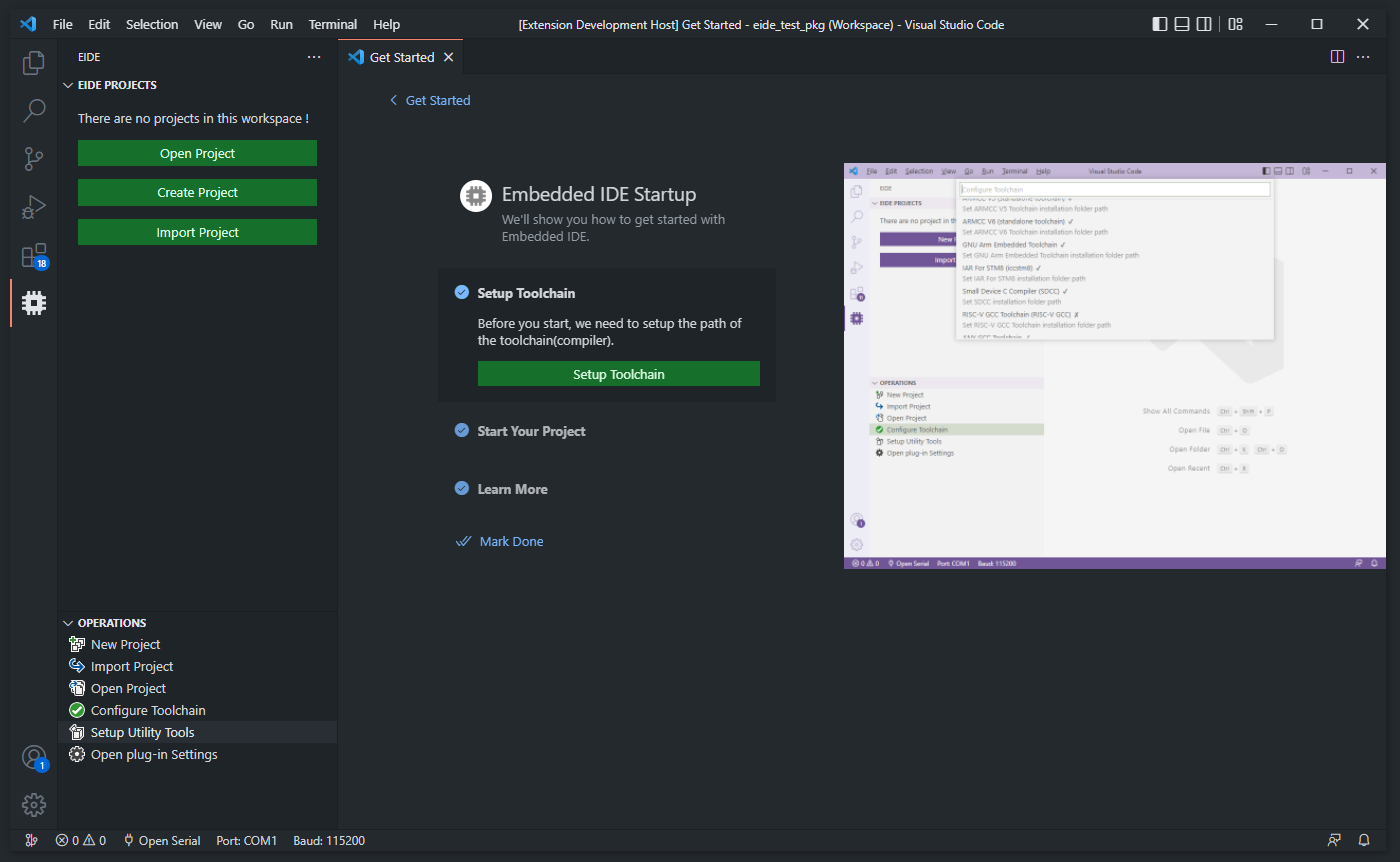
EIDE is a VSCode plugin for developing microcontroller projects, such as: 8051, stm8, stm32, and other cortex-m mcus...
I recommend using EIDE for continued application development on Keil projects. Getting the board up and running and setting up peripherals is still best done in Keil — after all, it's the official toolchain, so you can trust it. STM32CubeMX also makes it very easy to generate Keil projects, so Keil is still the better choice when you're first exploring peripherals.
Why choose EIDE instead of PlatformIO IDE?
The most important reason is that EIDE can import Keil projects seamlessly, so a stable project doesn't need to be re-verified. EIDE supports Keil's only valuable component — the AC6 compiler.
Also, EIDE is developed by a Chinese developer, so communicating with the community is stress-free. The author is very active online and replies very promptly; you can even try pestering him with technical questions that have nothing to do with the plugin.
Here is the community address:

Preparations
Let's make the goal of our preparations clear: get VSCode + EIDE installed, and make sure the EIDE plugin can detect the ARM-GCC and AC6 toolchains.
I won't walk you through the installation step by step here.
The first thing I recommend is reading the official documentation. At least read the entire "Getting Started" chapter:
There's also a decent community blog post, but I still recommend following the official docs for environment configuration.
![[VSCODE]基于EIDE插件搭建vscode下的STM32单片机开发环境 - Foriver - 博客园](https://img2020.cnblogs.com/blog/2702372/202201/2702372-20220106152721430-1125632006.png)
Additional Preparation
These additional preparations are for debugging. As everyone knows, if the on-chip program can't be single-stepped, developing complex programs is basically impossible.
You'll need the classic must-have Cortex-debug plugin.
Once again, here is the official community documentation:
In short, two things need to be configured:
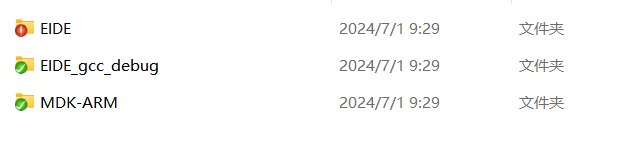
Set the ARM-GCC toolchain path. In my environment, it's
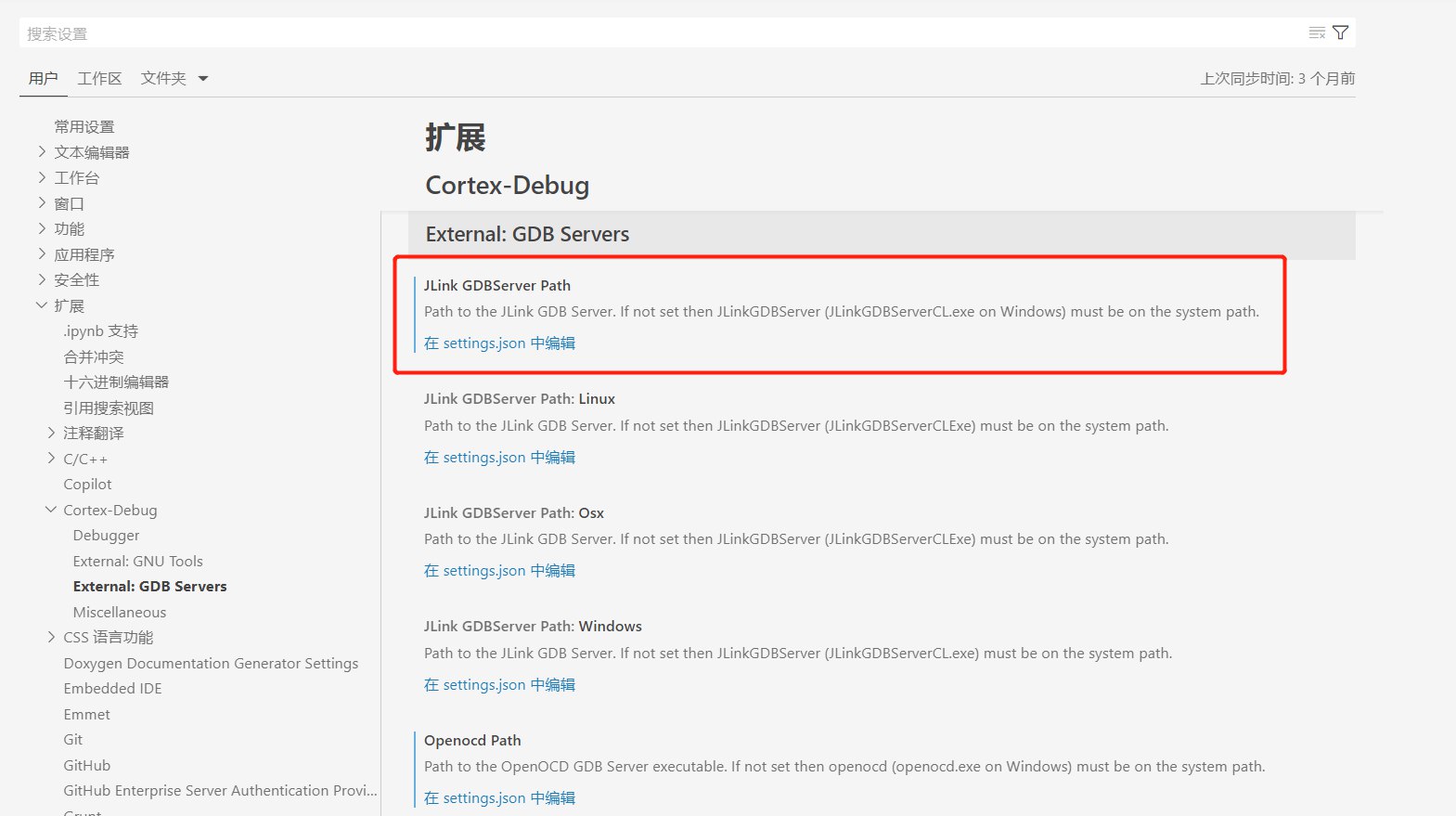
C:\111_APPS\arm-gnu-toolchain-13.2.Rel1-mingw-w64-i686-arm-none-eabi\bin, which contains toolchain programs such as arm-none-eabi-gcc.exe and arm-none-eabi-ld.exe.Set the GDB application path you need. For example, I use JLink for debugging, so I need to configure JLink GDBServer Path. In my environment, it's
C:\111_APPS\SEGGER\JLink_V794f, which contains JLinkGDBServer.exe. If you don't use JLink and need to debug with OpenOCD instead, configure OpenOCD Path.
The two items I set in Settings are these:
Getting Started
If you're using the EIDE plugin for the first time, I suggest getting a backup copy of a Keil project to use as a test, and make sure it compiles and lights up the board normally in Keil.
Import the project following the official docs:
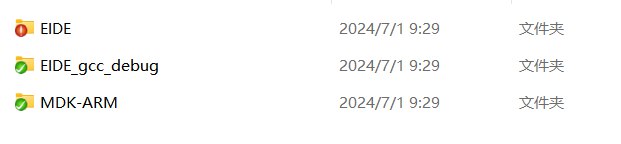
During import, a prompt will ask where to place the VSCode workspace project. For the first time, I suggest putting it together with the original Keil project files to avoid extra operations. But after you've used the test project to get familiar with the new development environment, you still need to separate projects for different development environments. If you can't even separate different environment configurations, you're basically already lost.
Pitfalls in the Development Environment
These are simple yet not-so-simple pitfalls, and they determine whether you can get the development environment up and running. This section only covers the AC6 compiler; the GCC compiler is still too weak.
The Big Pitfall: Assembler Compilation
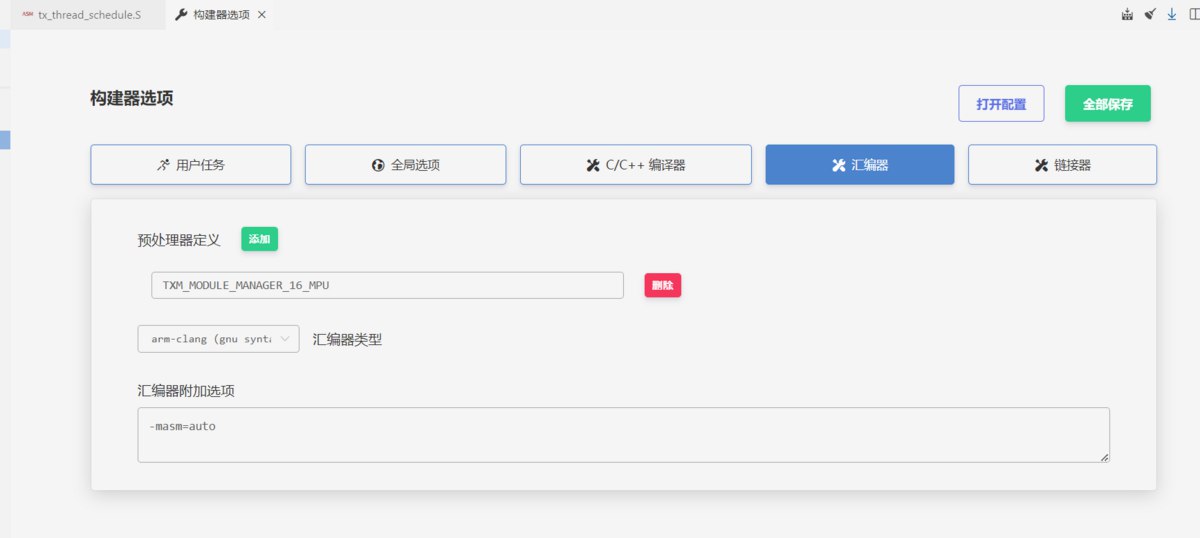
Here is the assembler configuration — and there's a big pitfall here!
The assembly code we get may be written in different assembly formats.
- GNU format: comments use
/**/or//, and directives such as.syntax,.section, and.globalare used. - ARM format: comments start with
;, and directives starting with.xxxare not used.
So the assembler type needs to be selected automatically. However, if you set the assembler type to "auto", preprocessor definitions aren't allowed. You need to select "arm-clang" as the assembler and add the extra assembler option "-masm=auto". That way, the assembler is selected automatically and preprocessor definitions can be used as well.
Configuring Single-Step Debugging
As everyone knows, most MCU engineers are hardware engineers pretending to be software engineers. These configurations are too difficult for MCU engineers, which is why Keil is still the mainstream IDE today.
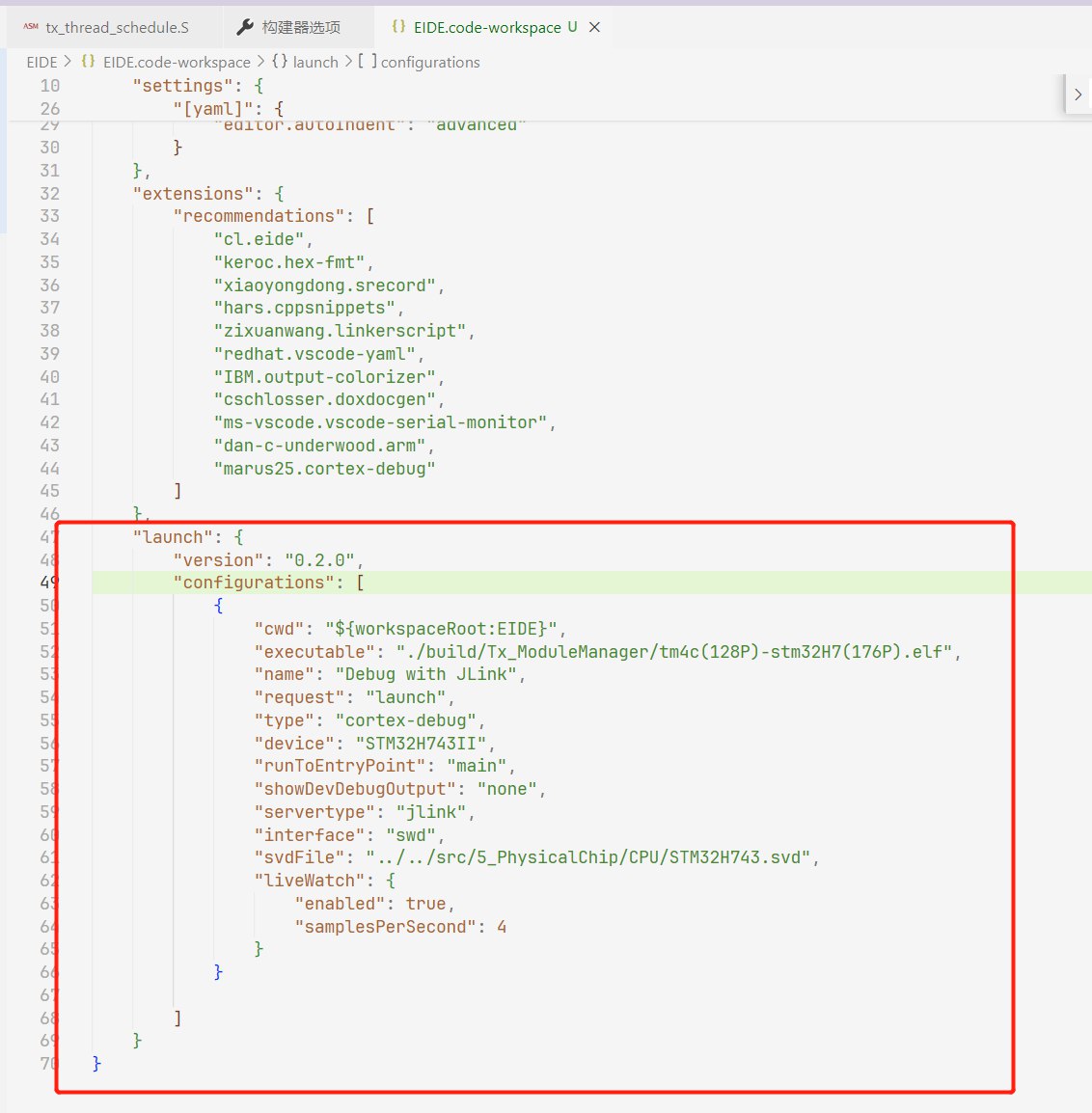
First, open the Run and Debug view and add a workspace debug configuration. Since our project and source code are in different directories, it's better to base the debug configuration on the workspace.
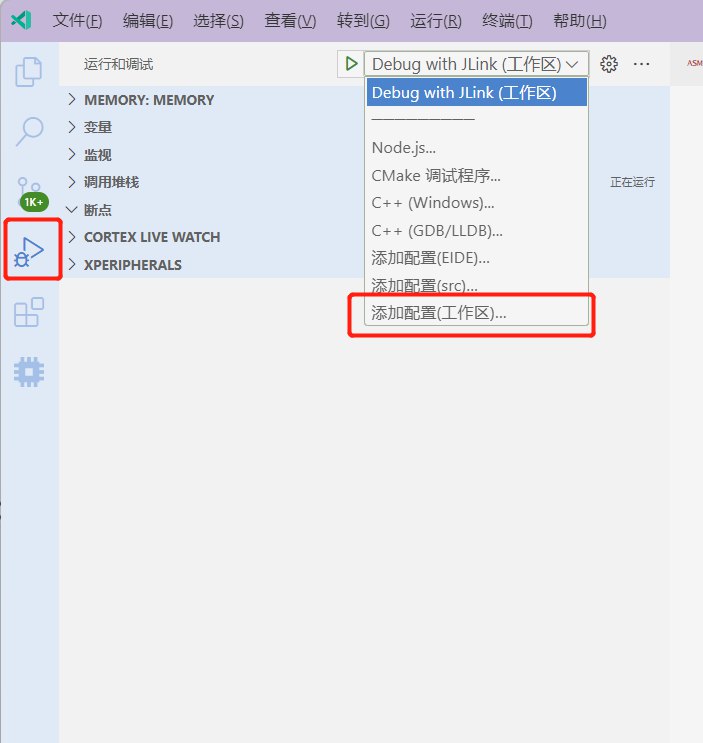
It will auto-generate a small amount of code in the workspace JSON. Use autocomplete or write it yourself to make it look like this:
The key items to configure are:
"cwd": current working directory. Most people set this to ${workspaceRoot}, but since our workspace has more than one folder — at least an EIDE project folder and an SRC source folder — append the EIDE suffix here to point to the EIDE project folder as the base."executable": the generated executable file; look in the EIDE project's build output directory."name": the name of the debug task; it will appear in the dropdown in the Debug view for selection."type": the debugger type. We connect to the chip for debugging, so fill in "cortex-debug" and use the Cortex-debug plugin for debugging."device": the full chip model, which must be supported by the debugger. We usually use JLink's debugger executable, so this is the name that our JLink supports. Just keep it the same as the name in the flashing configuration. (If the flashing configuration is wrong, you're in big trouble — just call someone over.)"servertype": choose based on what you use. I use "jlink" here; if you use OpenOCD, change it to "openocd"."interface": the debug connection method."svdFile": System View Description. This is optional for application engineers; it's used to view register values during debugging. If you want it, you can look for it on ST's official website, but other MCUs may not publish SVD files (you can extract them from Keil's pack files)."liveWatch": an option for viewing real-time variable values and expression results. It's actually enabled by default, so you can leave it unconfigured.